If you play NBA 2K26 on PC, you know how frustrating poor performance can be. Choppy gameplay, sudden frame drops, and irritating stutters can ruin a perfect run in MyCAREER or a critical match in MyTEAM. The good news is that most of these issues are fixable without spending money on new hardware. This guide walks US players through the most effective and easy-to-apply performance fixes to get smooth, consistent frames every time they hit the court.
Does Your PC Actually Meet the Requirements?
Before changing any settings, it helps to know where your system stands. NBA 2K26 has specific hardware demands. Running the game on hardware that falls below these specs will always lead to poor frame rates, no matter what settings you adjust.
Here is a clear breakdown of the official minimum and recommended specifications:
| Component | Minimum | Recommended |
| Operating System | Windows 10 64-bit | Windows 10 64-bit |
| Processor | Intel Core i3-9100 or AMD Ryzen 3 1200 | Intel Core i5-10600 or AMD Ryzen 5 3600X |
| RAM | 8 GB | 16 GB |
| Graphics Card | NVIDIA GTX 1060 5GB or AMD RX 5500 XT 4GB | NVIDIA RTX 2070 or AMD RX 5700 |
| Storage | 110 GB SSD | 110 GB SSD |
| DirectX | Version 12 | Version 12 |
One important note: the game requires an SSD. Installing it on a traditional hard drive causes long loading times and erratic in-game performance. If you are still using an HDD, moving the game to an SSD alone can produce noticeable improvements.
Additionally, the game needs a processor that supports AVX2 instructions. Older CPUs that lack this feature simply cannot run the game at all.
Why FPS Drops Happen in NBA 2K26
Understanding the cause of your performance issues helps you apply the right fix. There are three main reasons players experience low frame rates or stuttering.
First, graphical settings may be too high for your hardware. NBA 2K26 is a GPU-intensive game. Features like ray tracing and high-resolution shadows push even capable cards hard. Therefore, running everything at maximum on a mid-range system leads to frame rate problems.
Second, background processes consume system resources. Programs running in the background — such as browsers, recording tools, and system overlays — eat into your CPU and RAM. This leaves less room for the game to perform well.
Third, driver or software conflicts can cause instability. Outdated graphics drivers, conflicting overlays, or corrupted shader caches are common culprits behind sudden stutters and frame spikes.
In-Game Graphics Settings That Make the Biggest Difference
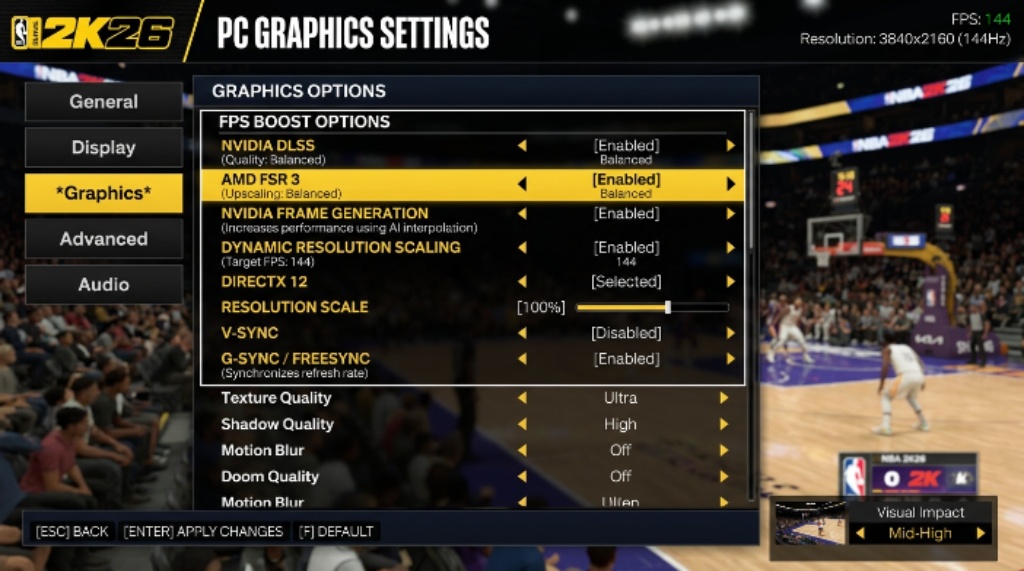
The fastest way to boost FPS in NBA 2K26 is to adjust the in-game graphics settings. Some settings have a much bigger impact on performance than others. Here is what to change and why.
Display Mode
Set the display mode to Fullscreen Exclusive. This bypasses Windows’ own display compositor, which reduces input latency and tightens up frame pacing. Borderless Windowed mode, while convenient, adds unnecessary processing overhead.
Vertical Sync
Turn V-Sync off. V-Sync is a common cause of stuttering in NBA 2K26. When the game cannot maintain a consistent frame rate, V-Sync introduces noticeable judder. Turning it off allows frames to render freely, resulting in a smoother feel.
Resolution Scaling
This is one of the most effective tools for a major FPS boost. Lowering the internal rendering resolution reduces the workload on your GPU without drastically affecting how the game looks on screen. If you have an NVIDIA graphics card, enable DLSS (Deep Learning Super Sampling). If you use an AMD card, enable FSR (FidelityFX Super Resolution). Both technologies upscale a lower-resolution image intelligently, recovering visual quality while maintaining better performance.
Ray Tracing
Unless you have a high-end GPU, turn ray tracing off. It is one of the most demanding graphical features in the game. Disabling it can recover a significant number of frames, especially on mid-range hardware.
Shadow Quality and Crowd Detail
These two settings consume a lot of GPU resources. Reducing shadow quality from high to medium, or from medium to low, produces a noticeable FPS improvement. Similarly, lowering crowd detail has minimal visual impact during gameplay but reduces the processing load considerably.
Here is a quick reference table for recommended in-game settings based on your hardware tier:
| Setting | Low-End PC | Mid-Range PC | High-End PC |
| Display Mode | Fullscreen Exclusive | Fullscreen Exclusive | Fullscreen Exclusive |
| V-Sync | Off | Off | Off |
| Ray Tracing | Off | Off | Optional |
| Resolution Scaling | FSR / DLSS Ultra Performance | FSR / DLSS Quality | Native |
| Shadow Quality | Low | Medium | High |
| Crowd Detail | Low | Medium | High |
| Texture Detail | Medium | High | Ultra |

System-Level Fixes That Boost Performance
In-game settings are only part of the solution. Additionally, several system-level adjustments can produce meaningful FPS gains.
Update Your Graphics Drivers
Outdated drivers are a surprisingly common cause of performance issues. Both NVIDIA and AMD release game-ready drivers regularly. These updates often include optimizations specifically for newly released titles. Always make sure your drivers are current before troubleshooting anything else.
Disable Overlays and Background Apps
Overlays from Discord, the Xbox Game Bar, GeForce Experience, and other apps inject into the game process and add CPU overhead. Disabling all of them before launching NBA 2K26 is a low-effort fix that often delivers immediate results. Close unnecessary browser tabs and background applications as well.
Set the Game to High Priority
Telling Windows to allocate more resources to NBA 2K26 helps the game run more smoothly alongside other background processes. You can do this through Windows Task Manager by finding the game process and adjusting its priority level to High. However, avoid setting it to Realtime, as this can cause system instability.
Enable Game Mode in Windows
Windows has a built-in Game Mode that prioritizes system resources for active games. Make sure this is turned on in Windows Settings under Gaming options. It suppresses background update tasks and other resource-consuming processes while you play.
Keep the Game on an SSD
As mentioned earlier, an SSD is a requirement, not a suggestion. If you are experiencing long loading screens or performance hitches during transitions between areas of The City, check where the game is installed. Moving it to a solid-state drive often resolves these issues entirely.
Fixing Online FPS Problems Specifically
Online modes in NBA 2K26, such as The City and MyTEAM matchmaking, can feel noticeably slower than offline modes. This is partly because the game caps frame rates in online play. However, there are still steps you can take to improve the experience.
- Use a wired ethernet connection instead of Wi-Fi. A stable, low-latency connection reduces input lag and makes online gameplay feel more responsive.
- Close any applications that use significant internet bandwidth in the background, such as streaming services or large downloads.
- Make sure your router firmware is up to date. Outdated router software can introduce unnecessary latency.
- Consider using a game booster application that routes your connection more efficiently. Several options are available for US players, and many offer free tiers.

Shader Cache and Driver Resets
If you recently updated your graphics drivers or reinstalled the game, you may experience stuttering during the first few sessions. This happens because the game builds a shader cache as you play. Once the cache populates fully, stuttering caused by this issue disappears on its own. Therefore, allow the game to run through several sessions before assuming the problem is permanent.
If stuttering persists after driver updates, consider doing a clean driver installation. This removes residual files from previous driver versions that can cause conflicts.
Conclusion
Getting better FPS in NBA 2K26 does not require expensive hardware upgrades. Most performance issues come down to graphics settings, background processes, outdated drivers, and system configurations that are easy to adjust. Start by confirming your PC meets the minimum requirements and that the game is on an SSD. Then work through the in-game settings, turning off V-Sync and ray tracing, enabling DLSS or FSR, and lowering shadow and crowd settings. Follow that with system-level fixes like disabling overlays, updating drivers, and enabling Windows Game Mode. For online play, a wired connection makes a meaningful difference. Apply these fixes step by step, and most US players will see a clear improvement in frame rate and overall smoothness.
Frequently Asked Questions
Why does NBA 2K26 run fine offline but feel slow online?
Online modes in NBA 2K26 often have a frame rate cap that does not apply in offline modes. Additionally, network latency and unstable Wi-Fi connections contribute to sluggish online performance. Using a wired ethernet connection and closing background apps that use bandwidth helps significantly.
Does NBA 2K26 need an SSD to run well?
Yes. An SSD is an official system requirement for the game. Running it on a traditional hard drive causes long load times and inconsistent in-game performance. Installing the game on an SSD is one of the most impactful single upgrades you can make.
Will turning off ray tracing actually improve FPS?
Yes, noticeably. Ray tracing is one of the most demanding graphical features in the game. Turning it off can recover a significant number of frames per second, especially on mid-range GPUs like the RTX 2060 or RX 5700.
Is DLSS better than FSR for NBA 2K26?
DLSS is generally considered to produce sharper results, but it only works on NVIDIA RTX-series graphics cards. FSR works on both NVIDIA and AMD cards and is a strong alternative. Either option delivers better performance than native rendering on mid-range hardware.
How much RAM does NBA 2K26 need for good performance?
The minimum requirement is 8 GB of RAM, but the recommended amount is 16 GB. Players running 8 GB may experience performance dips, especially when running background applications. Upgrading to 16 GB is one of the most cost-effective hardware improvements for smoother gameplay.