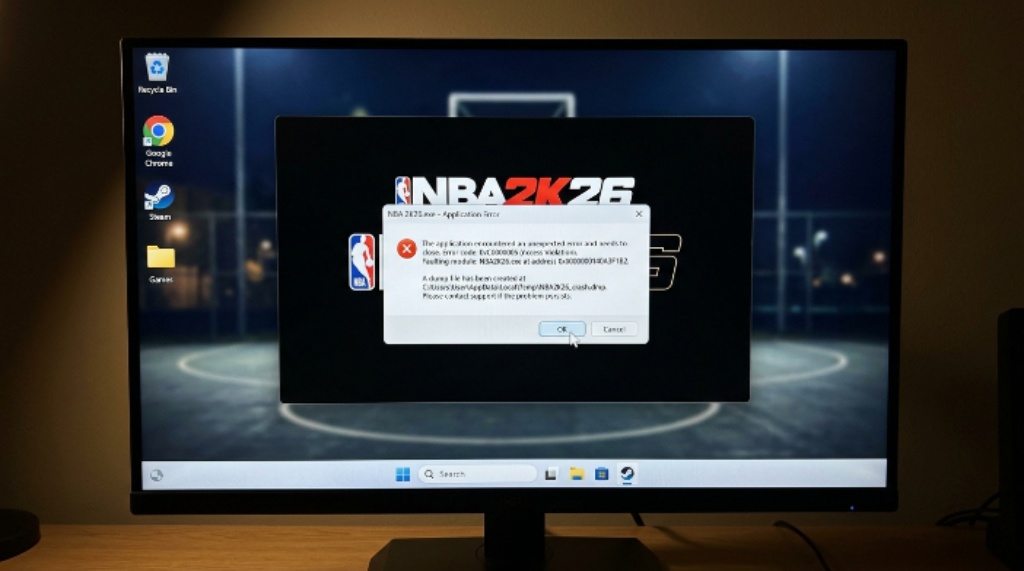
Nothing is more frustrating than sitting down for a gaming session, only for your game to crash before it even loads. Many players across the USA are experiencing exactly this with NBA 2K26 on PC. The game crashes right at startup, showing either a blank screen or an error message before closing itself. Thankfully, this is a known issue with several reliable solutions.
This guide walks you through every major fix in a logical order. Start from the top and work your way down. Most players find a solution within the first few steps.
Why Does NBA 2K26 Crash at Startup on PC?
Understanding the cause helps you pick the right fix faster. Startup crashes happen for several distinct reasons. Outdated graphics drivers are among the most common culprits. Corrupted game files, software conflicts, and hardware that does not meet the game’s requirements also cause crashes. Additionally, background apps like antivirus software and overlay tools can interfere with the game’s launch process.
Here is a quick overview of the most frequent causes:
| Cause | Description |
| Outdated GPU drivers | Old drivers struggle with NBA 2K26’s DirectX 12 requirements |
| Corrupted game files | Damaged installation data blocks the game from loading |
| Conflicting overlays | Discord, Xbox Game Bar, and similar tools can block startup |
| Antivirus interference | Security software sometimes flags game files as threats |
| Missing system components | DirectX or Visual C++ Redistributable may be absent or outdated |
| Below-minimum hardware | PCs that do not meet requirements will crash on launch |
| Easy Anti-Cheat errors | The anti-cheat system can fail to initialize properly |
Step 1: Check If Your PC Meets the System Requirements
Before trying anything else, confirm that your PC actually meets the game’s official requirements. Many startup crashes happen simply because the hardware is not powerful enough to run the game.
Here are the official minimum and recommended specifications for NBA 2K26 on PC:
| Specification | Minimum | Recommended |
| Operating System | Windows 10 64-bit (latest update) | Windows 10 / 11 64-bit |
| Processor | Intel Core i3-9100 or AMD Ryzen 3 1200 | Intel Core i5-10600 or AMD Ryzen 5 3600X |
| Memory (RAM) | 8 GB | 16 GB |
| Graphics Card | NVIDIA GTX 1060 5 GB / AMD RX 5500 XT 4 GB / Intel Arc A580 | NVIDIA RTX 2070 / AMD RX 5700 / Intel Arc A770 |
| DirectX | Version 12 | Version 12 |
| Storage | 110 GB (SSD required) | 110 GB (SSD required) |
| Network | Broadband internet | Broadband internet |
Two things stand out here. First, an SSD is not optional — it is required. Installing the game on a traditional hard drive will cause load failures and crashes. Second, your processor must support AVX2 instructions, and your graphics card must support DirectX feature level 12.0. If either is missing, the game will not start.

Step 2: Restart Your PC Completely
This sounds simple. However, it works more often than people expect. A full system restart clears temporary memory, stops conflicting background processes, and resets your graphics driver. If your PC has been running for many hours, heat buildup could also be a factor. Shut everything down, wait two minutes, and restart before trying to launch the game again.
Step 3: Update Your Graphics Card Drivers
Outdated GPU drivers are one of the leading causes of NBA 2K26 startup crashes. The game relies on DirectX 12 features that older drivers do not support properly. Updating your drivers takes only a few minutes and often solves the problem immediately.
For NVIDIA users, open the NVIDIA App or GeForce Experience application. Navigate to the Drivers section and check for new updates. Download and install any available Game Ready Driver. Restart your PC afterward.
For AMD users, open the AMD Adrenalin Edition software. It will automatically detect whether a newer driver is available. Follow the on-screen prompts to download and install it. Restart once the installation finishes.
For Intel Arc GPU users, visit the Intel website and download the latest graphics driver for your specific card model.
Step 4: Verify and Repair Game Files
Corrupted or incomplete game files will stop NBA 2K26 from launching. This can happen during installation, after a game update, or if the download was interrupted. Steam includes a built-in tool to check and repair your game files automatically.
Open your Steam library and right-click on NBA 2K26. Select Properties from the menu, then navigate to the Local Files tab. Click the option to verify the integrity of game files. Steam will scan your installation and replace any damaged or missing files. This process usually takes a few minutes.
Step 5: Disable Overlays and Background Tools
Overlay software is a surprisingly common cause of startup crashes. Tools like the Discord overlay, Xbox Game Bar, NVIDIA App overlay, AMD overlay, and streaming software such as OBS all run on top of the game window. They can interfere with the game’s anti-cheat system or its rendering process, causing an immediate crash.
Disable these tools one at a time to identify the conflict. You can turn off the Xbox Game Bar through Windows Settings under the Gaming section. Discord’s overlay can be disabled inside the Discord app’s settings under the Overlay menu. If the crash stops after disabling a specific tool, leave that overlay off when playing.
Step 6: Run the Game as an Administrator
Sometimes the game does not have the system permissions it needs to access certain files or directories. Running it with administrator rights often resolves this quietly. Right-click the NBA 2K26 executable or its Steam shortcut and select Run as Administrator. If this fixes the crash, you can set it to always launch with administrator permissions through the file’s Properties menu under the Compatibility tab.
Step 7: Reinstall Easy Anti-Cheat
Easy Anti-Cheat is a security tool the game uses to prevent cheating. However, it can become corrupted or fail to initialize, which causes the game to crash immediately at startup. Several players in the USA have reported this as the specific cause of their crashes.
To fix this, navigate to your NBA 2K26 installation folder on your PC. Inside, locate the Easy Anti-Cheat folder and run the setup file inside it. Choose the option to repair or reinstall the service. Once complete, restart your PC and try launching the game again.
Step 8: Update Windows and Install Missing Components
Pending Windows updates can contain DirectX fixes, security patches, and platform stability improvements that affect game performance. Open Windows Update through your Settings menu and install all available updates.
Additionally, NBA 2K26 requires Visual C++ Redistributable 2019 and an up-to-date version of DirectX 12. If these components are missing or outdated, the game will crash on startup. You can find and download both from Microsoft’s official website. Installing them often resolves crashes that other fixes do not address.
Step 9: Temporarily Disable Antivirus Software
Some antivirus programs mistakenly identify game files or the Easy Anti-Cheat system as threats and block them from running. This causes the game to crash before it even displays the loading screen. Temporarily disable your antivirus and try launching the game. If it works, add NBA 2K26 and its installation folder as exceptions in your security software rather than leaving your protection permanently disabled.
Step 10: Perform a Clean Reinstall
If none of the above steps have worked, a clean reinstall is your next option. Uninstall the game through Steam completely. Then navigate to your AppData folder and delete any remaining NBA 2K26 folders to remove leftover configuration files. Restart your PC before reinstalling the game fresh from Steam.
After reinstalling, allow the game to finish its first-time setup and shader compilation before loading any game modes. Some players find that adding the game to their antivirus exclusion list before reinstalling prevents the issue from returning.

Quick Reference: All Fixes at a Glance
| Fix | Best For |
| Restart PC | Quick first step for any crash |
| Update GPU drivers | Crashes caused by DirectX 12 incompatibility |
| Verify game files | Corrupted or incomplete installation |
| Disable overlays | Crashes triggered by Discord, Xbox Game Bar, OBS |
| Run as administrator | Permission-related launch failures |
| Reinstall Easy Anti-Cheat | Anti-cheat initialization errors |
| Update Windows and DirectX | Missing system dependencies |
| Disable antivirus | Security software blocking game files |
| Clean reinstall | Persistent crashes that nothing else fixes |
Conclusion
NBA 2K26 PC startup crashes are frustrating, but they are fixable. The most common causes are outdated GPU drivers, corrupted game files, overlay conflicts, and Easy Anti-Cheat errors. Start by confirming your PC meets the minimum system requirements and that your game is installed on an SSD. Then work through each step in order — updating drivers, verifying files, disabling overlays, and checking your antivirus settings. Most players in the USA resolve the issue within the first few steps. If all else fails, a clean reinstall will typically get the game running. Stay patient, follow the steps carefully, and you will be back on the court soon.
Frequently Asked Questions
- Why does NBA 2K26 keep crashing at startup on PC? The most common reasons are outdated graphics drivers, corrupted game files, overlay tools conflicting with the game, Easy Anti-Cheat errors, and missing system components like DirectX or Visual C++ Redistributable. Checking each of these in order usually identifies the cause quickly.
- Do I need an SSD to run NBA 2K26 on PC? Yes. An SSD is an official system requirement, not a recommendation. Installing the game on a traditional hard drive will result in long load times, instability, and startup crashes. Move the game to an SSD if you have not already.
- Can overlays like Discord cause NBA 2K26 to crash on startup? Yes, they can. Overlay tools from Discord, Xbox Game Bar, NVIDIA, AMD, and streaming software can interfere with the game’s startup process and its anti-cheat system. Disabling overlays one at a time often reveals the specific conflict.
- How do I fix Easy Anti-Cheat errors in NBA 2K26? Navigate to the game’s installation folder, find the Easy Anti-Cheat subfolder, and run the setup file inside to repair or reinstall the service. Restart your PC after the repair is complete before trying to launch the game again.
- Will reinstalling NBA 2K26 fix the startup crash? A clean reinstall is often effective when other fixes have failed. Uninstall the game through Steam, delete any remaining folders in your AppData directory, restart your PC, and then reinstall freshly. Make sure to add the game as an antivirus exception before reinstalling to prevent the same issue from returning.